Scans and tasks
Every inventory an agent sends is scanned on the server against the Grype vulnerability database. The Scans and tasks page shows what is running, what is scheduled, and what has finished.
How a scan works
- An agent uploads its inventory. The asset is marked Scan pending.
- A scan starts shortly after the upload, or at the next scheduled scan.
- The scan matches the packages of each pending asset against the vulnerability database,
in parallel (
SCAN_WORKERSassets at a time). Saving the results is done one at a time. - The findings of the asset are replaced by the new ones, and the asset is no longer pending.
Matches are cached in Redis per database build, for three days, so a package that has been matched before is not matched again until the database changes.
A request to scan while another scan runs is skipped, so you can start one without checking first.
Running now and history
The top of the page lists the jobs that are Running now, with their progress. A job whose worker stopped sending heartbeats is shown as interrupted, and its work is taken over by another worker or started again by the next run.
To stop a job, press Cancel on its row and confirm. A cancelled scan skips the assets it has not scanned yet, and keeps the results it already saved. A cancelled task run stops at its next progress update. Needs the scan permission for a scan, and the task permission for other jobs.
Scan history lists the scans, with when they started, what triggered them (scheduled, manual, or after an inventory), their status, duration and error. Recently finished lists the other jobs, such as database updates and report renders.
Start a scan
Select Start a scan, and choose whether to do a Full rescan. A normal scan handles only
pending assets, and after a vulnerability database update it rescans what is affected. A full
rescan repeats the matching of every asset. Saving a CPE mapping already starts one.
Requires the scans.run permission.
Scheduled tasks
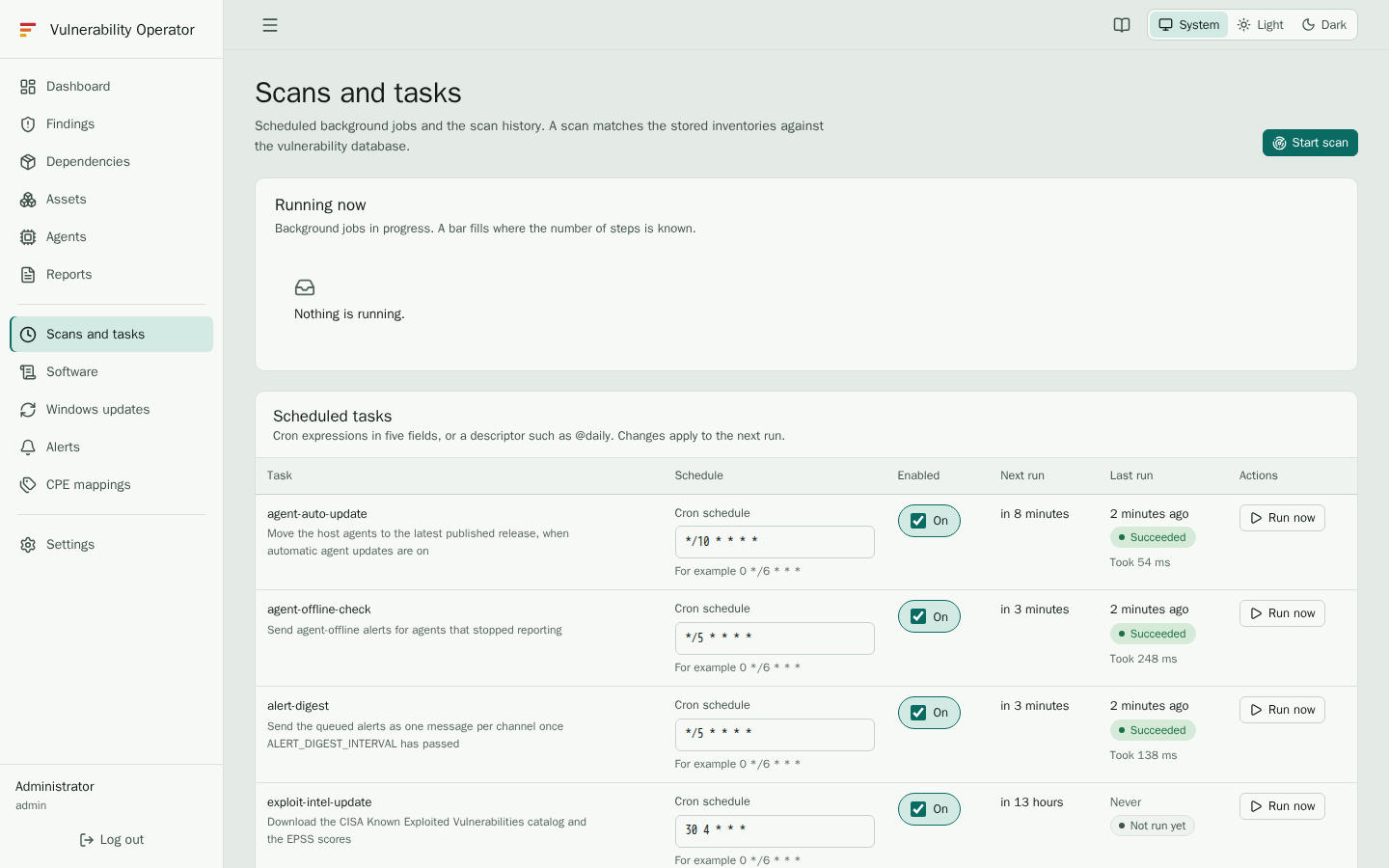
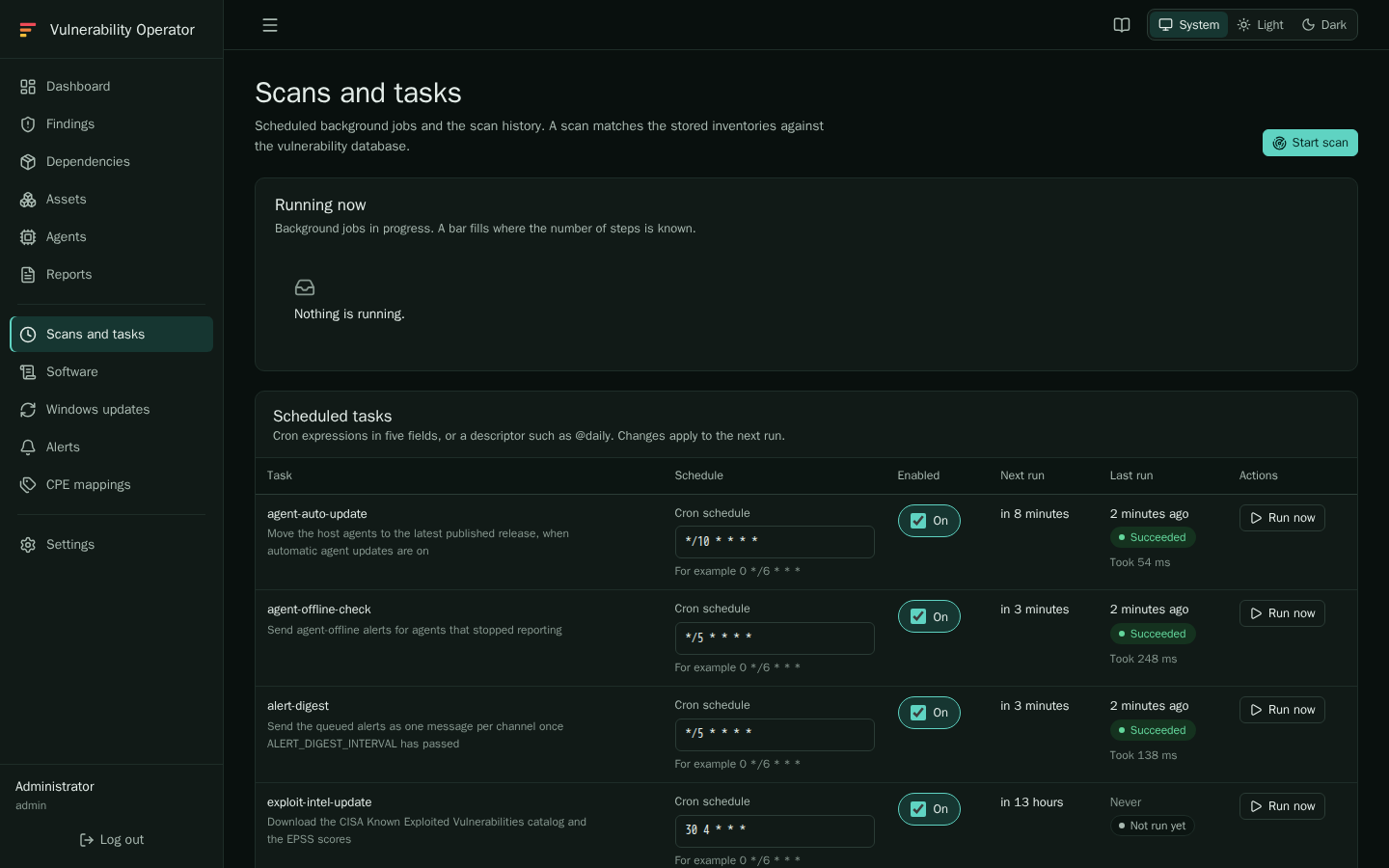
The Scheduled tasks table lists the tasks of the server, each with its cron schedule, whether it is enabled, and when it ran last and will run next.
| Task | Default schedule | Purpose |
|---|---|---|
grype-db-update | 0 */6 * * * | Download the newest Grype database. |
vulnerability-scan | 0 */2 * * * | Scan pending assets, and rescan after a database update. |
agent-offline-check | */5 * * * * | Send offline alerts. |
alert-digest | */5 * * * * | Send queued alerts as one message when ALERT_DIGEST_INTERVAL is set. |
retention-cleanup | 30 3 * * * | Delete old scan runs and alert logs. |
unused-package-cleanup | 45 3 * * * | Delete packages that no asset has installed, with their findings. |
exploit-intel-update | 30 4 * * * | Download the CISA KEV catalog and the EPSS scores, and copy them onto the findings. |
windows-update-catalog | 15 4 * * * | Read the Windows cumulative updates and builds from the Microsoft release health and Windows 10 update history pages. |
The exploit task reads cisa.gov and epss.cyentia.com. On a server without
internet access it fails and logs the reason; the findings keep the last copy they
had. A scan also copies the exploit data onto the findings it stores, so new
findings are ranked at once.
To change a schedule, edit its row and enter a cron expression, five fields in the usual order.
Turn a task off to stop its runs; the others keep running. Run a task now with its run action.
Changing a schedule needs tasks.manage.
The vulnerability database
The first scan waits for the Grype database. The grype-db-update task downloads it, and
the grype-db-load job loads it into the server. The database is kept in GRYPE_DB_DIR.
While the database loads, a scan is refused: Start scan returns a conflict, and the
scheduled scan fails until the next run. The readiness check at /readyz reports
"grypeDatabase": "loading" until the database is in place. The HTTP status stays 200.
For air-gapped installations set GRYPE_DB_UPDATE=false, and copy a database into GRYPE_DB_DIR
from a machine that can reach the internet. The server then reads that copy and never downloads
one. Scans keep working, but the data grows older until you copy a newer one.
When a scan does not finish
- A scan that stays Running for a long time needs a look at the job log and the server logs. A job whose heartbeat stopped is marked as interrupted in the list.
- A scan that shows an error in the history reports it in the Error column. Fix the cause, then start the scan again.
- Assets that stay Scan pending after a successful scan were not included in it. Check their status on the Assets page and the logs of the server. See also Troubleshooting.