Alerts and channels
Alerts tell people when something needs their attention without them having to look at the interface. The server sends them through channels, and decides which events to send with rules. The Alerts page has three tabs: Channels, Rules and Events.
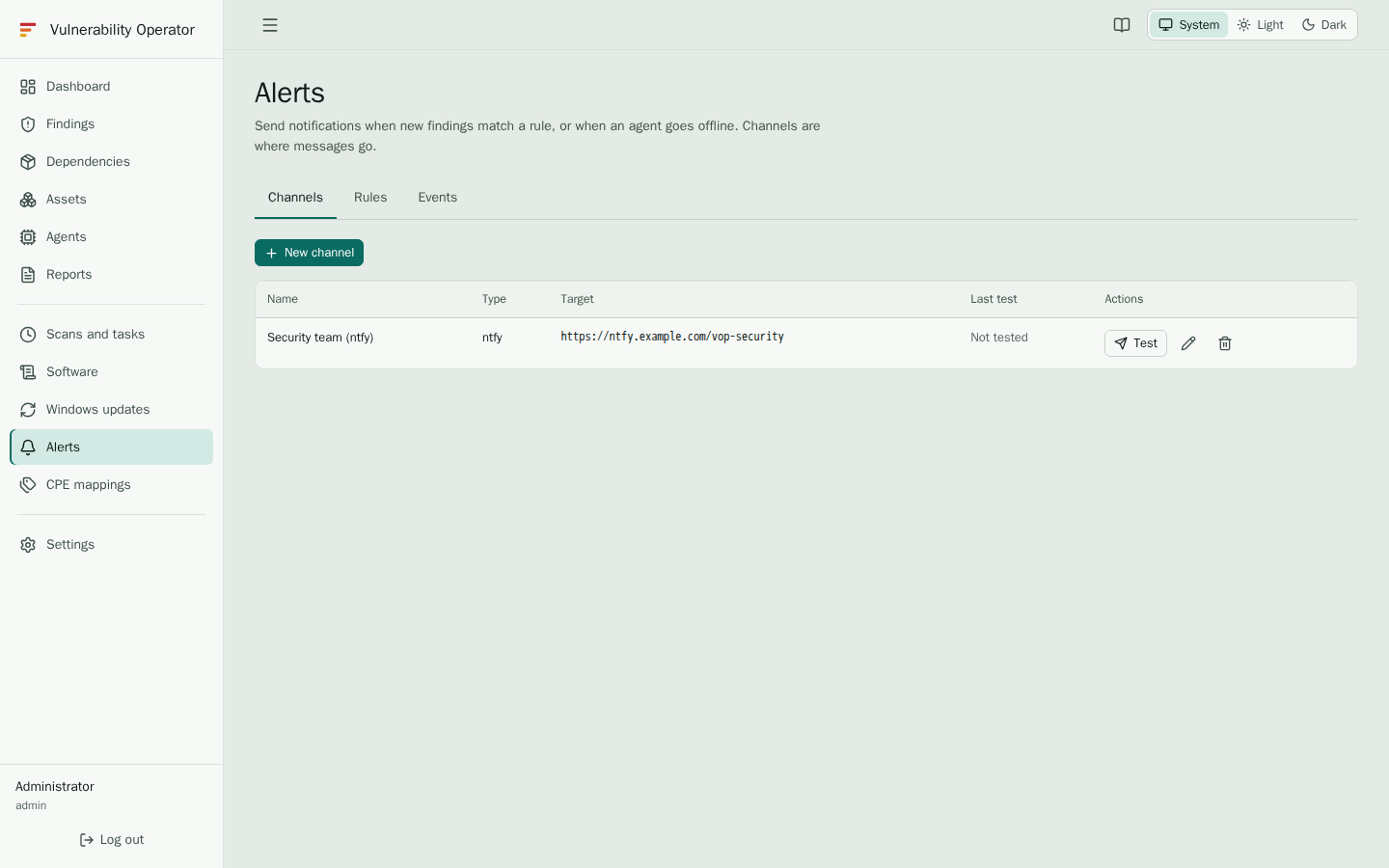
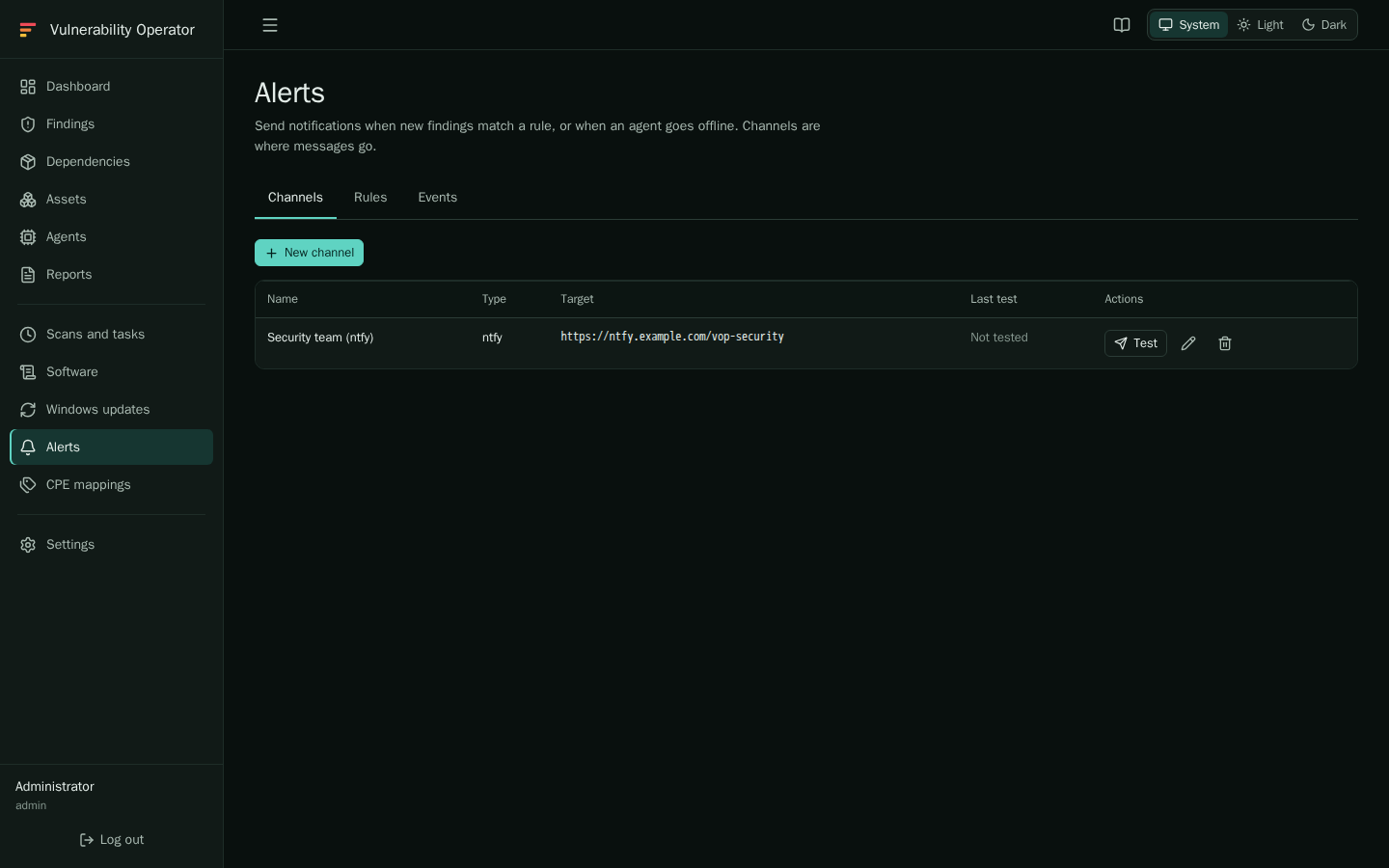
Create a channel
Select New channel and choose a type:
| Type | Fields | Notes |
|---|---|---|
| ntfy | Server (for example https://ntfy.sh), topic, optional access token | Anyone who knows the topic name of a public server can read it. Use an unguessable name, or a token. |
| Gotify | Server URL, app token | Create an application in Gotify and use its token. |
| SMTP host, port, security (STARTTLS, TLS or none), username, password, sender address, recipients | Enable Skip certificate checks only for test servers. | |
| Slack | Incoming webhook URL | Create an incoming webhook for a channel of your Slack app. The URL is a secret. |
| Discord | Webhook URL | In the channel settings, open Integrations, Webhooks, and copy the webhook URL. The URL is a secret. |
| Microsoft Teams | Workflows webhook URL | Create a Post to a channel when a webhook request is received workflow in Teams and use its URL. Microsoft is retiring the older Office 365 connectors, so use a workflow. |
Secrets are stored in the database and shown masked. Select Test on a channel to send a test message and see the result in its Last test column. A channel is only used when it is enabled.
Write a rule
Select New rule and choose the event:
- New finding sends a message when a finding is seen for the first time, and matches it by:
- minimum severity;
- CVE pattern and Package pattern, as regular expressions;
- Cluster and Namespace, as glob patterns;
- Agent type: Linux, Windows, macOS or Kubernetes;
- Only fixable findings.
- Agent offline sends a message when an agent stops reporting, once per offline episode. Mobile agents are skipped; see Mark a host as mobile.
- Unallowed software sends a message for each package installed or updated outside the allowed list. Only the channels apply. The list is maintained on the Software page, and while it is empty nothing is sent.
Choose the channels the rule sends to. A rule with no channel does nothing. Many findings that match at once are summarised in one message, so a new release with dozens of vulnerable packages does not flood the channel.
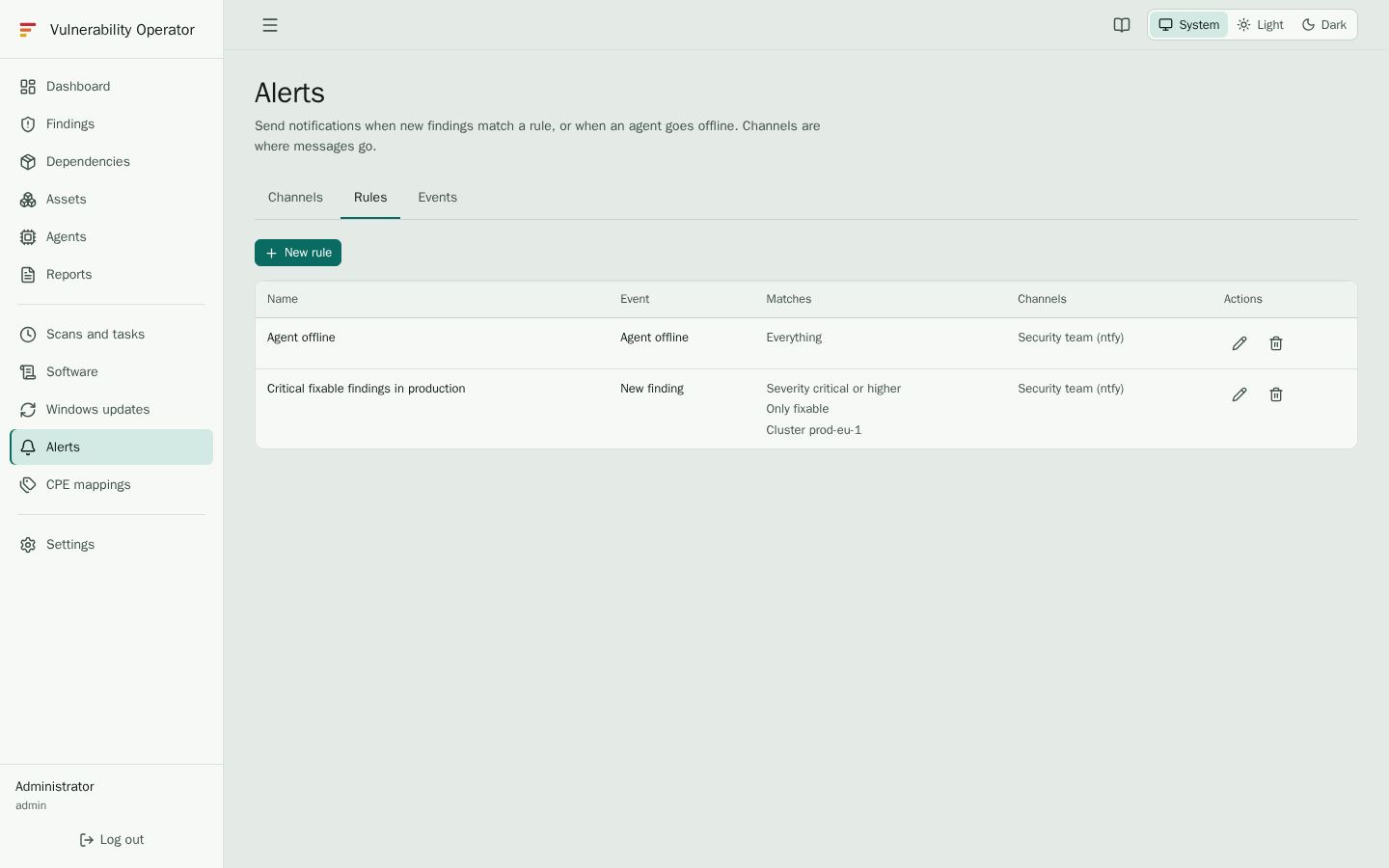
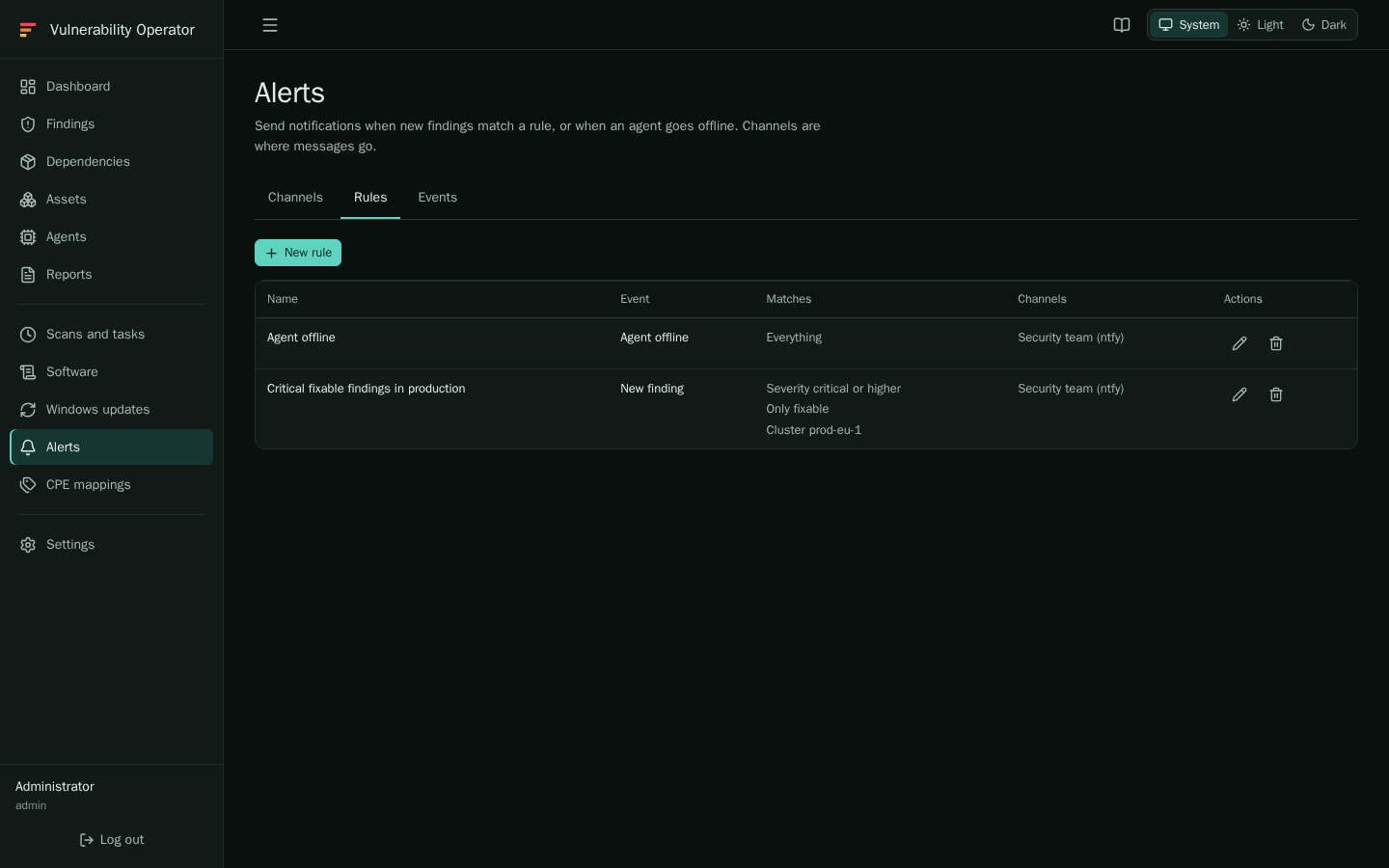
Create a rule for each team, with its cluster or namespace, and a channel for that team. Start with critical and fixable: it is the smallest list that people act on.
The delivery log
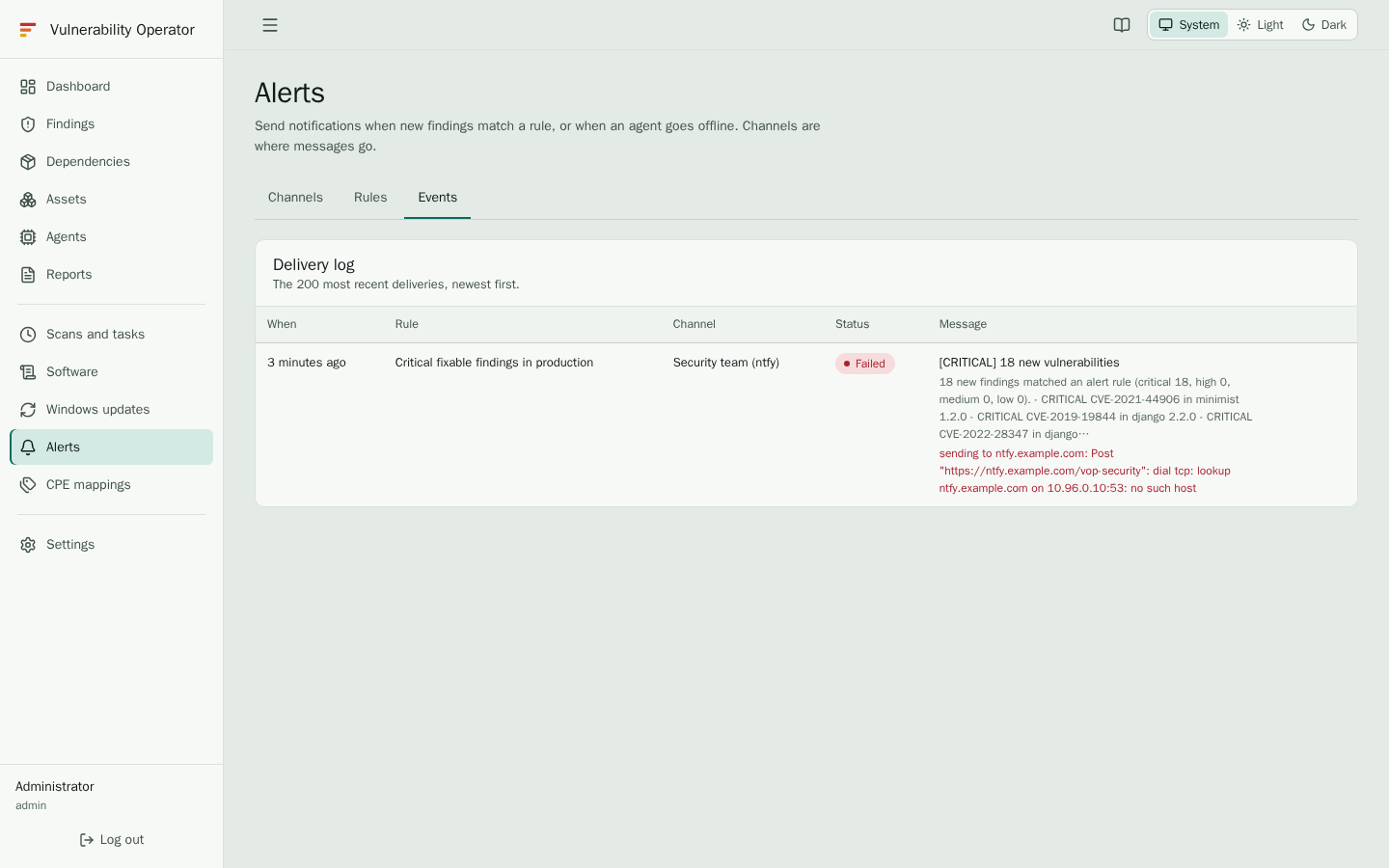
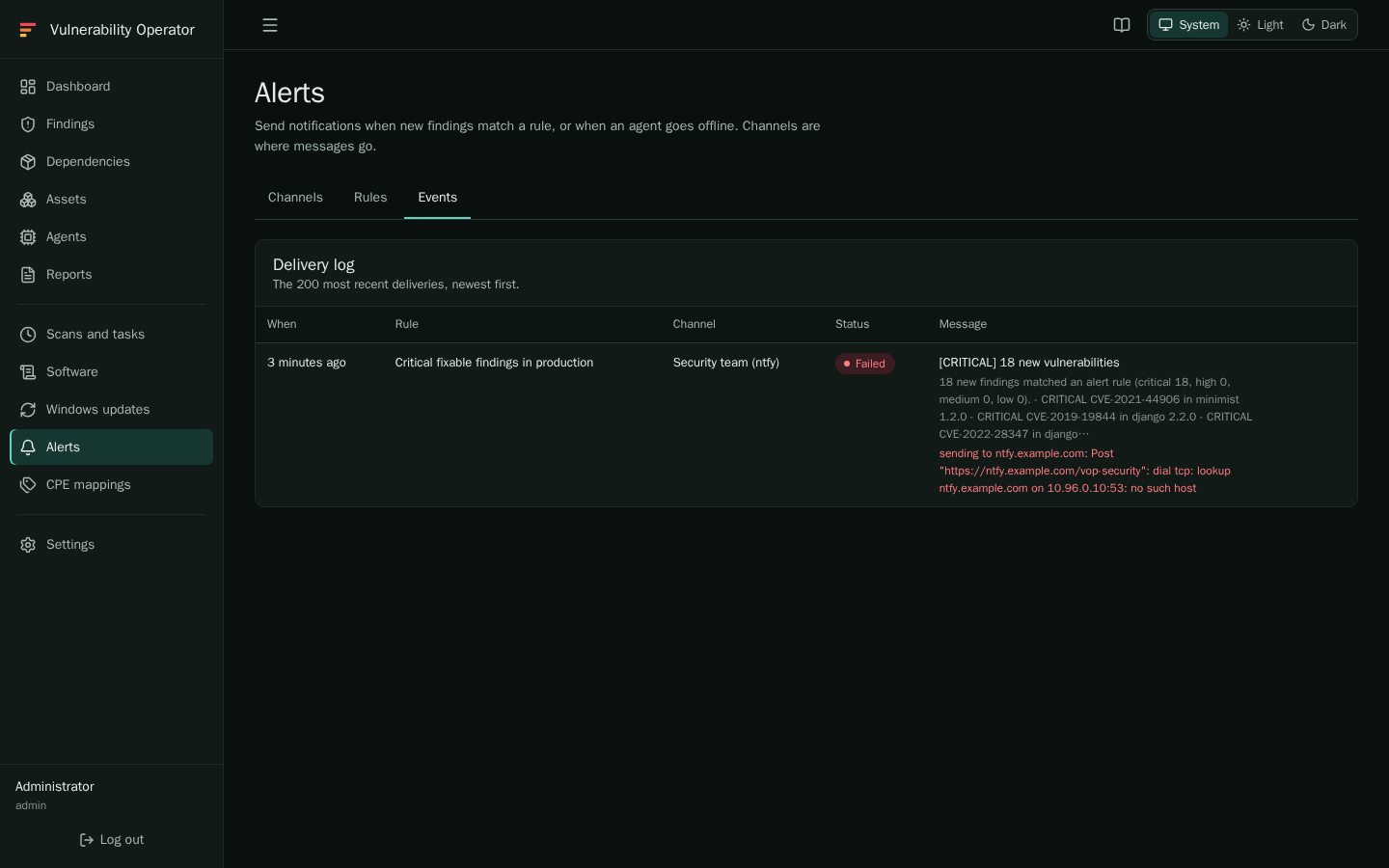
The Events tab records every message the server tried to send, with the rule, the channel, the status and the message. A failed delivery shows its error. Use it first when an alert did not arrive: the error is usually a wrong server address, a wrong token, or a certificate the server does not trust.
Bundle alerts
Set ALERT_DIGEST_INTERVAL, for example 4h, to hold finding and unallowed-software
alerts back. Each channel then gets one message that lists them, sent once its oldest
waiting alert is that old. The alert-digest task checks every five minutes, so a
digest can be a few minutes late. A failed send stays queued for the next run.
Agent-offline alerts are always sent at once. With 0, the default, every alert goes out at once.
Notes
- Alert rules and channels are not scoped: an administrator with
alerts.managesees and changes all of them, whatever the scope of the users who receive the alerts. - The logs are kept for
RETENTION_DAYS, 90 days by default.