Adding hosts
A host agent runs on a Linux, Windows or macOS machine. It sends the machine's installed packages to the server, which turns them into findings. Adding a host is two steps: create an install command in the interface, and run it on the host.
Create the install command
- Open Agents and select Add host.
- Choose the System: Linux (systemd or OpenRC), Windows (a service, from an administrator PowerShell) or macOS (launchd, from an administrator Terminal).
- Optionally enter a Name. The host name is used when the field is empty.
- Choose how long the link is Valid for: one hour by default, or 24 hours.
- Select Create install command.
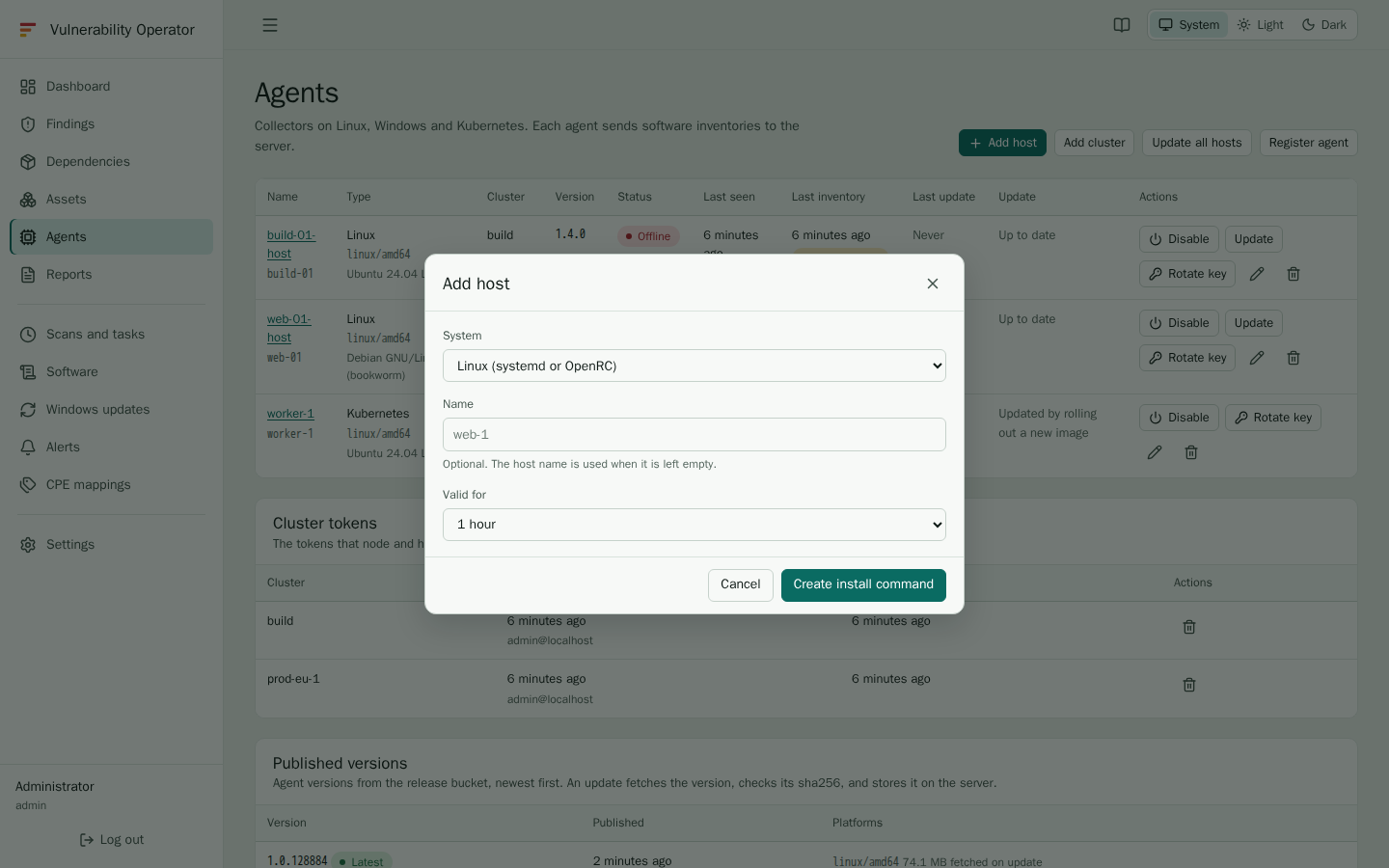
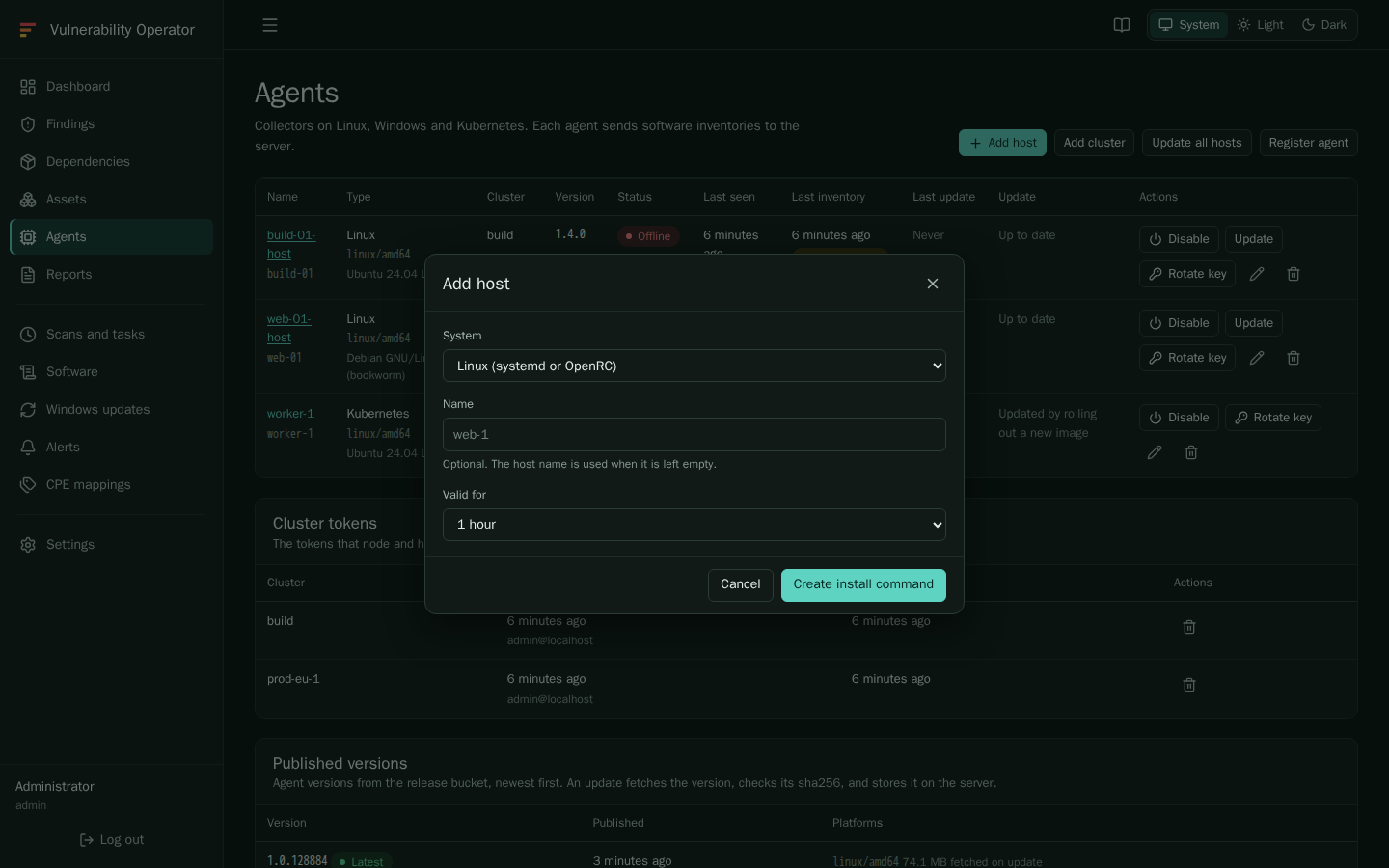
The dialog shows one command for the system you chose. Copy it and run it on the host.
Run it on the host
| System | Run, as administrator |
|---|---|
| Linux | curl -fsSL '<url>' | sudo bash |
| Windows | in an administrator PowerShell: irm '<url>' | iex |
| macOS | in Terminal: curl -fsSL '<url>' | sudo bash |
The link works once and expires after the time you chose. Do not share it, and do not put it in a document: anyone who runs it first registers the host.
The installer:
- detects systemd or OpenRC on Linux, or the launchd service on macOS, and installs the agent as a service that starts at boot;
- downloads the agent of the latest release and checks its SHA-256 checksum;
- registers the host with the server, and writes the agent's configuration file;
- starts the agent.
The configuration file is /etc/vop/vop-agent.json on Linux and on macOS, and
C:\vop\vop-agent.json on Windows. On macOS the service is the launchd daemon
dev.vop.agent, and its log is /var/log/vop-agent.log. The key of the agent is
written by the installer and is never shown in the interface. The agent binary is
public: the single-use link is what makes the registration work.
Confirm that it reports
Within a minute the host appears on the Agents page with the status Online. Its first inventory follows, and the findings appear after the scan. The Last inventory column shows when the agent last sent its packages, and whether they had changed since the upload before. The Last update column shows when a package of the host last changed its version, as the scans saw it. Updates from Windows Update or the package manager show there. An agent update does not. The column stays empty until the second scan of the host. The host is then listed on the Assets page with its inventory time.
If the host stays offline, check the service on the host:
- Linux:
systemctl status vop-agentor, on OpenRC,rc-service vop-agent status. - Windows:
sc query vop-agent. - macOS:
sudo launchctl list | grep dev.vop.agent, and/var/log/vop-agent.log.
The Troubleshooting page lists the usual causes.
Register an agent by hand
When the host cannot run the installer, for example because it has no outbound internet access to download the release, register the agent manually:
- Select Register agent on the Agents page.
- Enter a Name, choose the Type (Linux host, Windows host or macOS host) and select Register.
- Copy the agent key. It is shown once. Store it with the configuration file.
- Install the agent binary yourself, write the configuration file with the key and the server address, and start the agent as a service. The agent configuration page has the file and the commands.
Keep the binary up to date with the managed updates, see Agent updates.
Put a host in a cluster
Any host can belong to a cluster, whatever its system. Open the host in Agents and select Edit. Enter a Cluster name to group the host under that cluster, or leave it empty to remove the host from its cluster. Its findings and assets follow the new name at once. A Kubernetes agent must always have a cluster name.
Mark a host as mobile
A laptop is often offline on purpose. Open the host in Agents, select Edit and tick Mobile. A mobile host still appears in the list and its findings still count, but it sends no Agent offline alerts. Clear the box to get those alerts back.
Rotate a key or remove a host
- Rotate key creates a new key for the agent and stops the old one at once. Copy the new key into the configuration file of the host, and restart the agent.
- Disable stops the agent from sending inventories without deleting its history.
- Delete removes the agent and its assets. Its findings go with it.
Windows and macOS
The Windows and macOS agents are built and published with each release, and their installers follow the same steps. At the time of writing, they have not been run on a Windows or macOS machine in the project's testing, so check the first hosts of each kind carefully.