AI summaries
The server can add an executive summary to PDF reports, and propose CPE mappings for Windows programs. Both use an AI backend: any server that speaks the OpenAI chat completions API, for example OpenAI, Ollama or vLLM. Nothing is sent until an administrator enables it.
Configure the backend
On the Settings page, in AI backend:
- Select Enable AI summaries.
- Enter the Base URL, the address that contains
/chat/completions. For Ollama on the same machine it ishttp://localhost:11434/v1. - Enter the Model, for example the name of a model your server offers.
- Enter an API key if the backend needs one.
- Set the Timeout in seconds. Summaries can take a while on a local model.
- Select Save AI settings, then Test connection. The connection test uses the saved settings, so save before you test changed values.
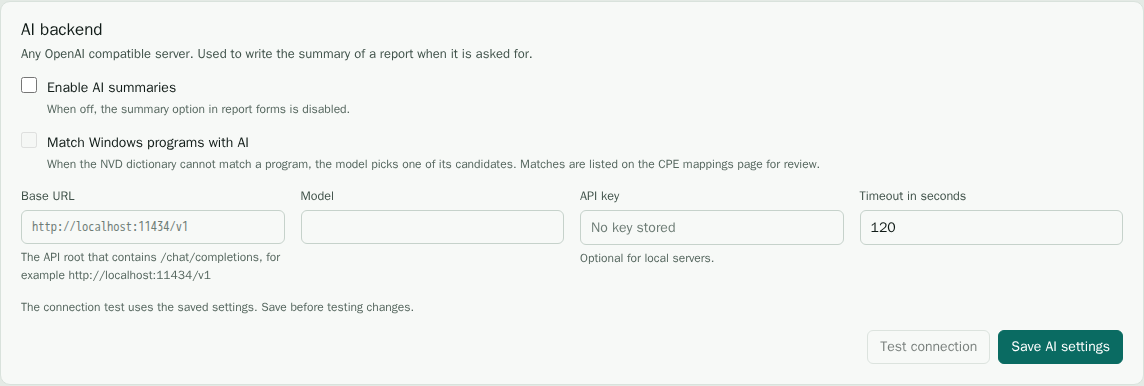
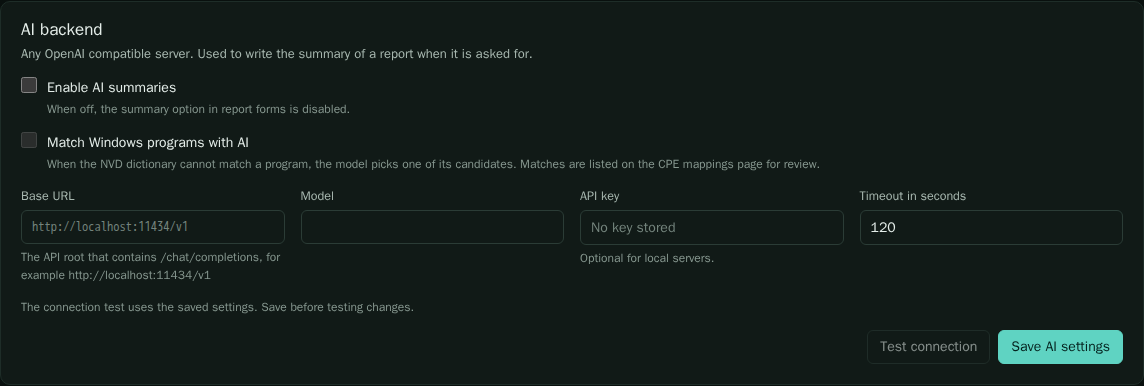
Enable Match Windows programs with AI to let the AI propose mappings for programs that have none. See CPE mappings.
What is sent
For a report summary only counts and the top items are sent to the backend, not the whole inventory. That covers:
- The total findings, the number of fixable findings, and the counts of each severity with its fixable count.
- The ten most common vulnerabilities, with severity, CVSS score, affected assets and whether a fix exists. For each one, the summary also gets one affected package with its version, the fix versions, whether it is known to be exploited (KEV), its EPSS score and the advisory description, cut to 300 characters.
- The ten most affected packages and namespaces.
- The number of enabled agents and how many are offline.
Vulnerability, package and advisory text is sent, but not the asset names, pod names or file paths. For Windows program mappings, the AI backend receives the program names and the dictionary candidates for them.
Think about where the backend runs before you enable it. A hosted provider receives these figures; a local model keeps them on your network.
Add a summary to a report
When the backend is enabled, administrators see the option Add an AI summary on the new report form. Other users do not see it, because the summary is an administrator decision. The report list marks each report that has a summary.
When it does not work
- The test fails: check the base URL, the model name and the key. The base URL usually ends in
/v1, and the request goes to/chat/completionsbelow it. - Summaries time out: raise the timeout, or use a smaller model.
- The report has no summary: the backend was disabled, or the report was created without the option. Use Recreate on the report after you fix the backend.